How to Secure Your Connection on Public WiFi When Traveling

This article contains affiliate links. We may earn a commission if you make a purchase through our links, at no extra cost to you.
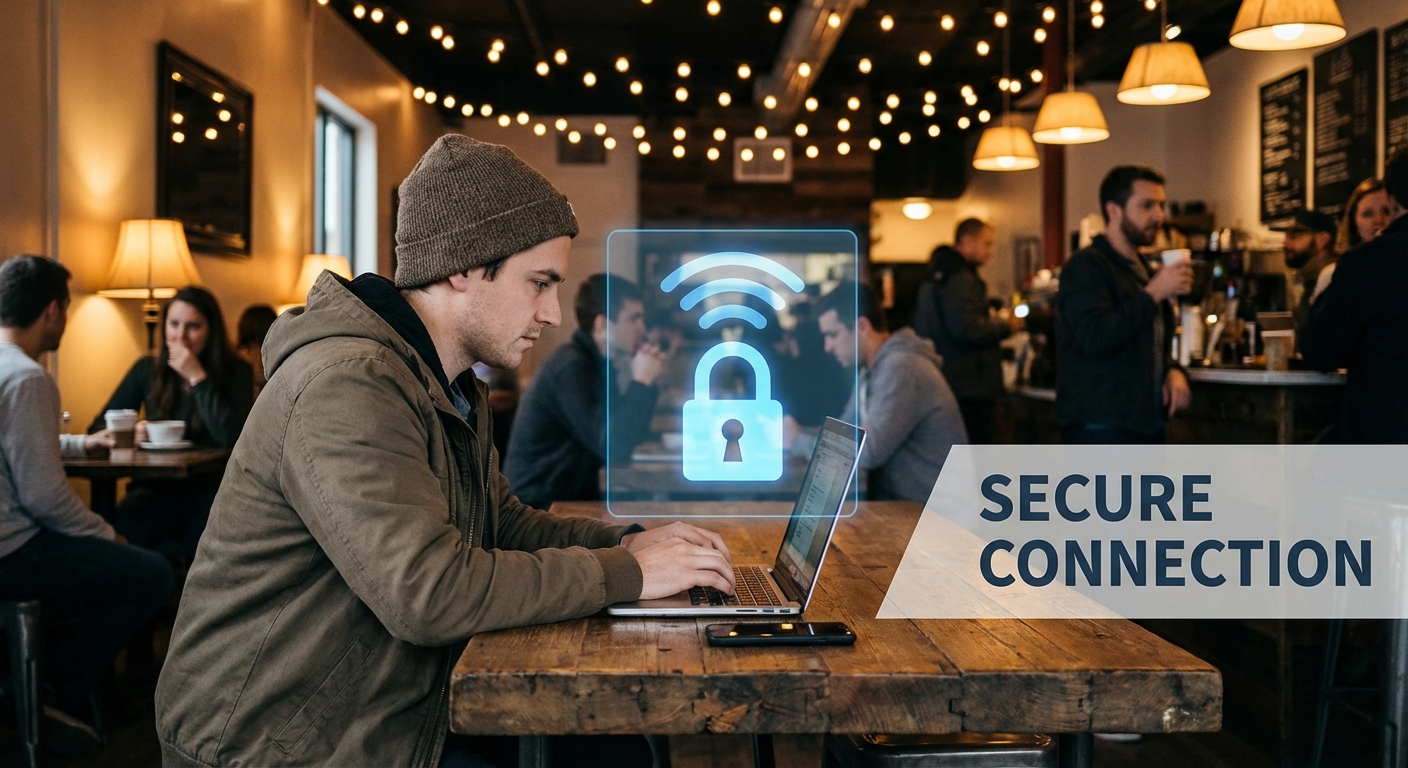
Every cafe, hotel, and coworking space you connect to is potentially compromised. Public WiFi networks are hunting grounds for data theft—unencrypted traffic, fake networks, and man-in-the-middle attacks are everyday realities, not theoretical concerns.
This guide covers practical security measures for working on public networks, from essential VPN usage to hardware solutions that protect all your devices automatically.
This article is part of our complete digital nomad connectivity guide, covering everything you need for reliable connectivity anywhere.
Why Public WiFi Is Dangerous
The Threat Landscape
Unencrypted traffic - On open WiFi without encryption, anyone on the same network can potentially see your traffic. Passwords, emails, messages—all visible to someone with basic tools.
Evil twin networks - Attackers create fake networks with legitimate-sounding names. "Starbucks_WiFi_Free" might be a trap capturing your data.
Man-in-the-middle attacks - Attackers position themselves between you and the network, intercepting and potentially modifying your traffic.
Malware distribution - Compromised networks can push malicious software to connected devices.
Session hijacking - Attackers can steal your session cookies, gaining access to logged-in accounts.
Real-World Risks
These aren't theoretical. Security researchers regularly demonstrate attacks at conferences. Criminal operations target tourist areas and business hotels specifically. The tools required are freely available and easy to use.
What's at stake:
- Banking credentials
- Email accounts
- Business data
- Personal communications
- Client confidential information
- Identity theft materials
Essential: Use a VPN
Why VPN Is Non-Negotiable
A VPN encrypts all traffic between your device and the VPN server. Even on a compromised network, attackers see only encrypted data—useless without the encryption keys.
What VPN protects:
- All internet traffic encrypted
- IP address hidden from network
- Protection from local network attacks
- Secure tunnel through untrusted networks
What VPN doesn't protect:
- Malware on your device
- Physical shoulder surfing
- Fake login pages you willingly enter credentials into
- VPN provider itself seeing your traffic
Choosing a VPN for Travel
Not all VPNs are equal. For travel use, prioritize:
Speed - Good VPNs add minimal latency. Poor ones make video calls impossible.
Server locations - Servers near your destinations provide better speeds.
Obfuscation - Essential for countries with internet restrictions.
Kill switch - Blocks internet if VPN drops, preventing accidental exposure.
Multi-device support - Cover laptop, phone, and tablet with one subscription.
Recommended providers:
- NordVPN - Fast, reliable, good global coverage
- ExpressVPN - Excellent for restricted countries
- Mullvad - Privacy-focused, no account required
- ProtonVPN - Swiss privacy laws, free tier available
VPN Best Practices
Connect before browsing - Enable VPN immediately after connecting to WiFi, before opening any websites or apps.
Verify connection - Check VPN app shows connected status before sensitive activities.
Enable kill switch - Prevents traffic if VPN disconnects unexpectedly.
Use obfuscation - In restrictive countries, enable stealth/obfuscation modes.
Keep app updated - VPN apps receive security patches. Keep them current.
Travel Router with VPN
The Hardware Solution
A travel router with built-in VPN client provides network-level protection for all devices:
How it works:
- Travel router connects to public WiFi
- Router establishes VPN connection
- Your devices connect to router
- All traffic flows through VPN automatically
Advantages over device VPNs:
- Protects devices that can't run VPN apps
- One VPN connection covers everything
- More stable than per-device VPN
- Works even if device VPN is blocked
- Simpler management
Recommended Hardware
The GL.iNet Beryl AX is our top recommendation for this purpose:
- Built-in WireGuard and OpenVPN support
- WiFi 6 for fast local connections
- Easy VPN configuration
- Portable size for travel
- Multiple ethernet ports
Setup process:
- Purchase Beryl AX
- Configure with your VPN provider credentials
- Connect to hotel/cafe WiFi through router
- All devices connect to router
- All traffic automatically encrypted
For more options, see our travel router guide.
Additional Security Measures
HTTPS Everywhere
HTTPS encrypts traffic between your browser and websites. Most sites now use HTTPS by default, but:
Check for HTTPS - Look for the lock icon in your browser's address bar before entering any sensitive information.
Don't ignore warnings - Browser warnings about invalid certificates often indicate attacks.
Be extra cautious on HTTP - Any site loading over HTTP is fully visible to network attackers.
Enable Two-Factor Authentication
If an attacker somehow captures your password, 2FA provides a second barrier:
Essential accounts for 2FA:
- Email - Your primary email is the key to most other accounts
- Banking - Financial accounts need maximum protection
- Cloud storage - Dropbox, Google Drive, iCloud
- Social media - Compromised accounts damage reputation
- Work systems - Business data requires protection
2FA methods by security:
- Hardware keys - Most secure, not always practical
- Authenticator apps - Strong security, convenient
- SMS codes - Better than nothing, but vulnerable to SIM swapping
Use Strong, Unique Passwords
Public WiFi attacks often capture login credentials. Limit damage with unique passwords:
Password manager - Use one to generate and store unique passwords for every site.
Never reuse passwords - One compromised password shouldn't unlock other accounts.
Change after incidents - If you suspect compromise, change affected passwords immediately.
Keep Software Updated
Attackers exploit known vulnerabilities. Updates patch these holes:
Enable automatic updates for:
- Operating system
- Browser
- VPN app
- Other frequently used apps
Update before travel - Complete major updates on trusted networks before relying on public WiFi.
Network Selection and Verification
Choosing Networks
Prefer authenticated networks - Networks requiring a password or room number provide basic filtering against random attackers.
Verify network names - Ask staff for the exact network name. "HotelWiFi" versus "Hotel_WiFi_Free" could mean legitimate versus fake.
Avoid networks with no security - Open networks with no password offer zero encryption at the network level.
Be suspicious of "free" networks - Unexpected free networks in areas where paid WiFi is normal may be traps.
Connection Practices
Forget networks after use - Prevent automatic reconnection to potentially compromised networks.
Disable auto-connect - Don't let your device automatically join open networks.
Turn off WiFi when not in use - Reduces exposure window.
Use airplane mode when sensitive - Completely eliminates wireless exposure when handling critical data.
Sensitive Activities
What to Avoid on Public WiFi
Even with VPN, some activities carry extra risk:
Banking without VPN - Never access financial accounts without VPN protection.
Work with highly sensitive data - Some data is too sensitive for any public network. Use cellular instead.
Installing software - Downloads could be intercepted and modified.
Entering new passwords - Creating accounts on compromised networks risks immediate credential theft.
Safer Alternatives
Cellular data - For truly sensitive activities, use cellular data instead of WiFi. Harder to intercept.
Wait for trusted networks - Some tasks can wait until you're on a network you control.
Use dedicated devices - Some travelers maintain separate devices for sensitive work.
Incident Response
Signs of Compromise
Unusual activity - Unexpected emails sent from your account, unfamiliar login notifications.
Slow or strange connections - Man-in-the-middle attacks can cause unusual network behavior.
Certificate warnings - Browsers warning about certificates may indicate interception attempts.
Unexpected popups - Requests for credentials or downloads you didn't initiate.
If You Suspect Compromise
- Disconnect immediately - Stop using the network
- Change passwords - On a trusted connection, change passwords for affected accounts
- Enable 2FA - Add additional protection to critical accounts
- Monitor accounts - Watch for unauthorized activity
- Scan for malware - Check devices for unwanted software
- Report if necessary - Notify your employer if work data may be affected
The Complete Security Stack
For maximum protection while traveling:
Layer 1: VPN - Required
Every device, every connection. No exceptions for public WiFi.
Layer 2: Travel Router - Recommended
Network-level protection for all devices. Especially valuable for frequent travelers.
Layer 3: 2FA - Required
All critical accounts protected with second factor authentication.
Layer 4: Password Manager - Required
Unique strong passwords for every service.
Layer 5: Updated Software - Required
All devices and apps kept current with security patches.
Layer 6: Good Judgment - Essential
No technology replaces awareness. Stay alert to unusual behavior and suspicious situations.
Frequently Asked Questions
Is VPN enough protection on public WiFi?
VPN provides strong protection for traffic interception, which is the most common public WiFi threat. Combined with HTTPS and good practices, it addresses most risks. It doesn't protect against malware or social engineering attacks.
Are hotel networks safer than cafe networks?
Slightly. Hotels typically have more network management and segmentation. But they're still shared networks with the same fundamental risks. Always use VPN.
Do I need VPN if the network is password-protected?
Yes. Password protection means the network is encrypted between your device and the access point. But anyone with that password—every hotel guest, every cafe customer—can still potentially see traffic. VPN protects beyond the local network.
Is free VPN safe to use?
Generally no. Free VPNs often monetize through data collection or ads, potentially compromising the privacy you're trying to protect. Reputable paid VPNs are worth the cost for actual security.
How do I know if a network is fake?
You often can't definitively tell. Verify network names with staff, avoid suspiciously convenient free networks, and use VPN regardless. Treating all public networks as potentially hostile is the safest approach.
Conclusion
Public WiFi security isn't optional for digital nomads handling any sensitive data. The baseline requirements:
Always use VPN - Non-negotiable for any public network.
Enable 2FA - Critical accounts protected even if passwords are compromised.
Use strong unique passwords - Limit damage from any single breach.
Keep software updated - Close known security holes.
Stay aware - Technology doesn't replace judgment.
For frequent travelers, a travel router with VPN provides the most comprehensive protection with the least daily hassle. Set it up once, and all your devices are automatically protected.
For the complete picture of staying connected securely while traveling, explore our complete digital nomad connectivity guide.
About the Author